


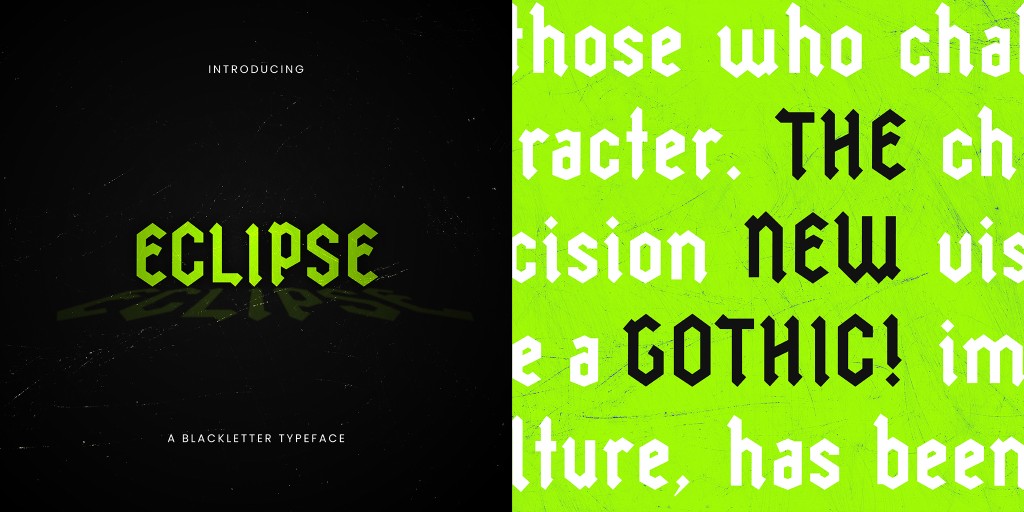
Eclipse is a modern Blackletter display typeface I created for my final Advanced Typography project. Instead of following the usual thick and thin strokes of traditional Blackletter, I want to make something cleaner and more modern without losing its Blackletter characteristics.
I imagine it being used for modern display designs.

Making Blackletter Feel New
One thing I learn about traditional Blackletter is its contrast between thick and thin strokes. The width changes depending on the direction of the letterform, with some parts appearing much thicker than others. This comes from the way Blackletter is originally written with a broad-edged pen.
For Eclipse, I keep the stroke width consistent throughout the typeface and use a hexagonal geometric structure to create cleaner and more refined letterforms.
At the same time, I still want people to look at the letters and think, “Yep, that’s Blackletter.”
Starting with the Letters
I use Old English as one of my references to understand the general structure and characteristics of Blackletter. I keep some Blackletter characteristics, such as the sharp shapes, condensed proportions, and square terminals inspired by pen nibs. I redesign them into cleaner shapes rather than trying to copy the traditional calligraphy style.
I initially sketch it on Procreate and developed the letterforms in Illustrator using a consistent stroke width.



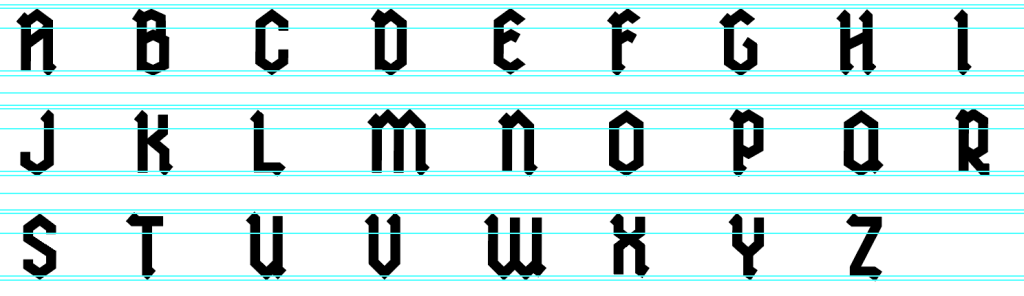
The main challenge is getting the whole alphabet to feel like it belongs together. I initially try following the hexagonal structure very strictly, but I quickly realise that not every letter works well when forced into the same system. Some letters, like H, Z, and T, become exceptions so they can remain readable and visually balanced.

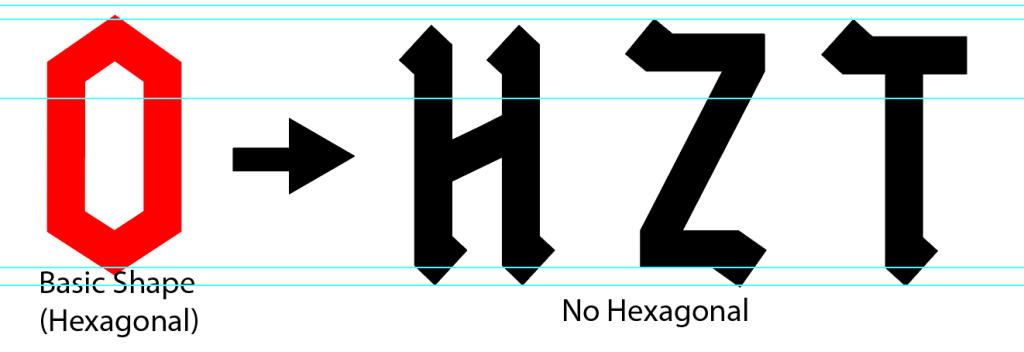
That becomes one of the biggest lessons from the project: consistency doesn’t always mean making everything exactly the same. Sometimes, allowing certain letters to break the rules actually makes the whole typeface work better.
Once the uppercase letters are working, I move on to the lowercase, numbers, and punctuation. The lowercase needs a bit more attention because the smaller size makes some of the counters and spaces feel too tight. I adjust a few shapes and proportions so the letters have more breathing room and don’t feel cramped.
I also play around with some of the smaller details, like the dots on i and j. Instead of going with a normal round dot, I choose a diamond-shaped square to match the geometric look of the typeface and mimic the pen nib shape.
I also spend a lot of time checking how the letters work next to each other. A letter can look perfectly fine on its own, but somehow feel completely different when it is placed next to another one. This is especially useful when working on the spacing and proportions.
I keep testing the typeface in different combinations to see what works and what needs adjusting. This helps me notice small issues that aren’t obvious when looking at individual letters. There is a lot of trial and error, but each adjustment slowly makes the typeface feel more complete.

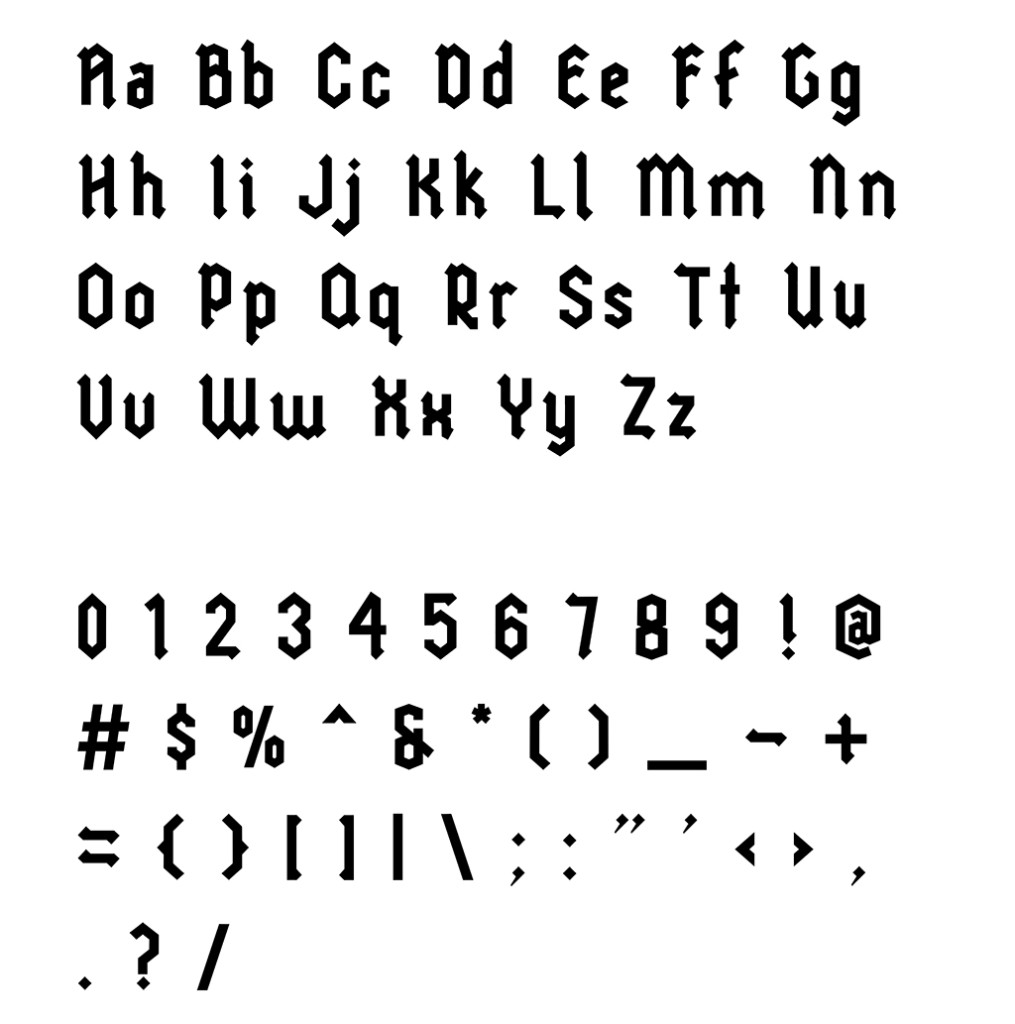
Converting Eclipse into a Font
Once the letters are finished, I bring them into FontForge to turn them into an actual font.
This part is definitely less exciting than drawing the letters, but it is just as important. I have to work out the spacing, side bearings, and kerning so the letters actually work together when typed.
Since Eclipse is condensed, I want the letters to sit quite close together without making the words hard to read. There is quite a bit of testing and adjusting involved, especially with different letter combinations.
I have also never worked with FontForge in this way before, so there is definitely a lot of figuring things out in the process. But once everything starts coming together, seeing my Illustrator letterforms turn into a font I can actually type with is really satisfying.
Font Presentation & Application
Once I finish the typeface, I start thinking about how Eclipse can be used in real designs. At first, I think I need to show as much of the typeface as possible. But eventually, I realise that I don’t have to show the entire alphabet to communicate its personality. A few strong letters, words, and compositions are enough.
For the font presentation, I don’t want it to just be about showing the font. I want the visuals to really reflect the feel of Eclipse too.
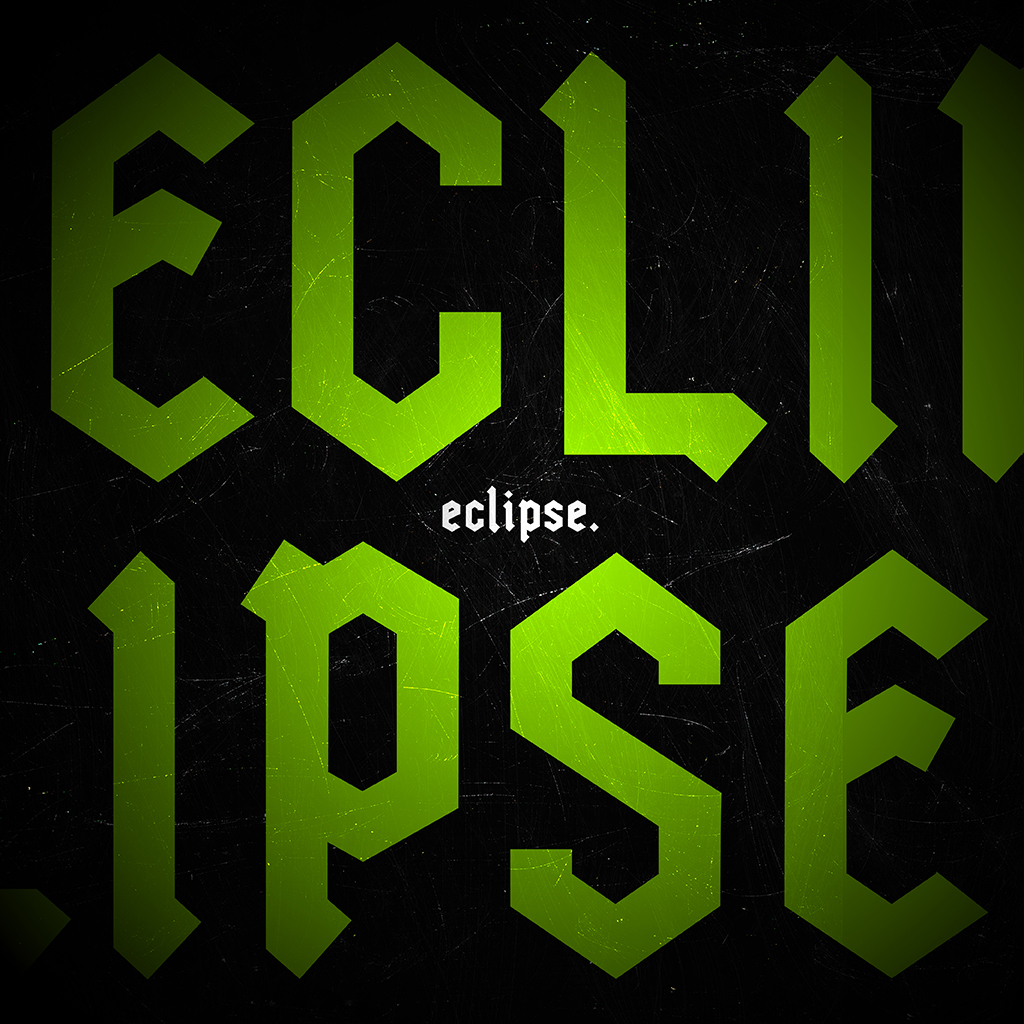
I use neon green and black to create a strong contrast that matches the bold and slightly edgy feel of Eclipse. I play around with different layouts too, some with really big text, some with smaller text, and one that simply focuses on showcasing one letter. I also add a subtle grain overlay across the presentations to give the visuals a more textured and finished look.
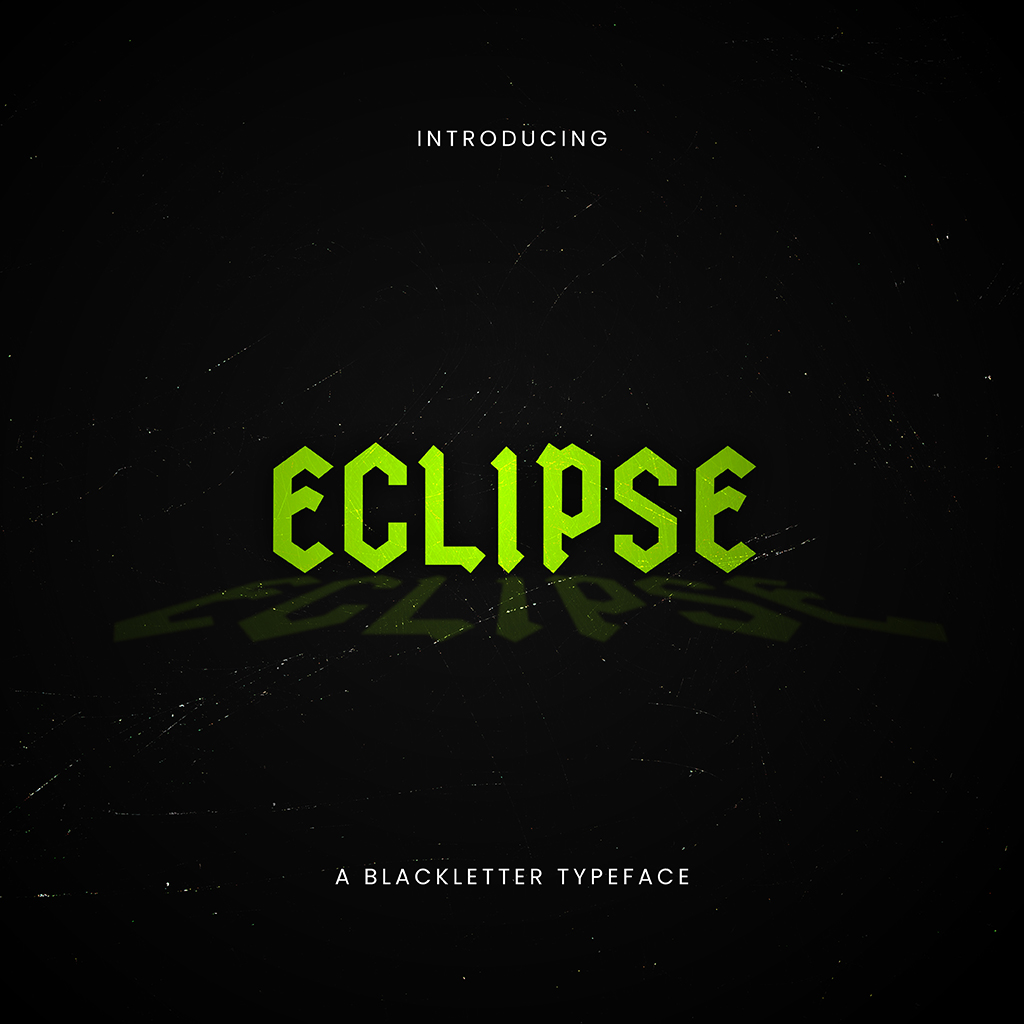
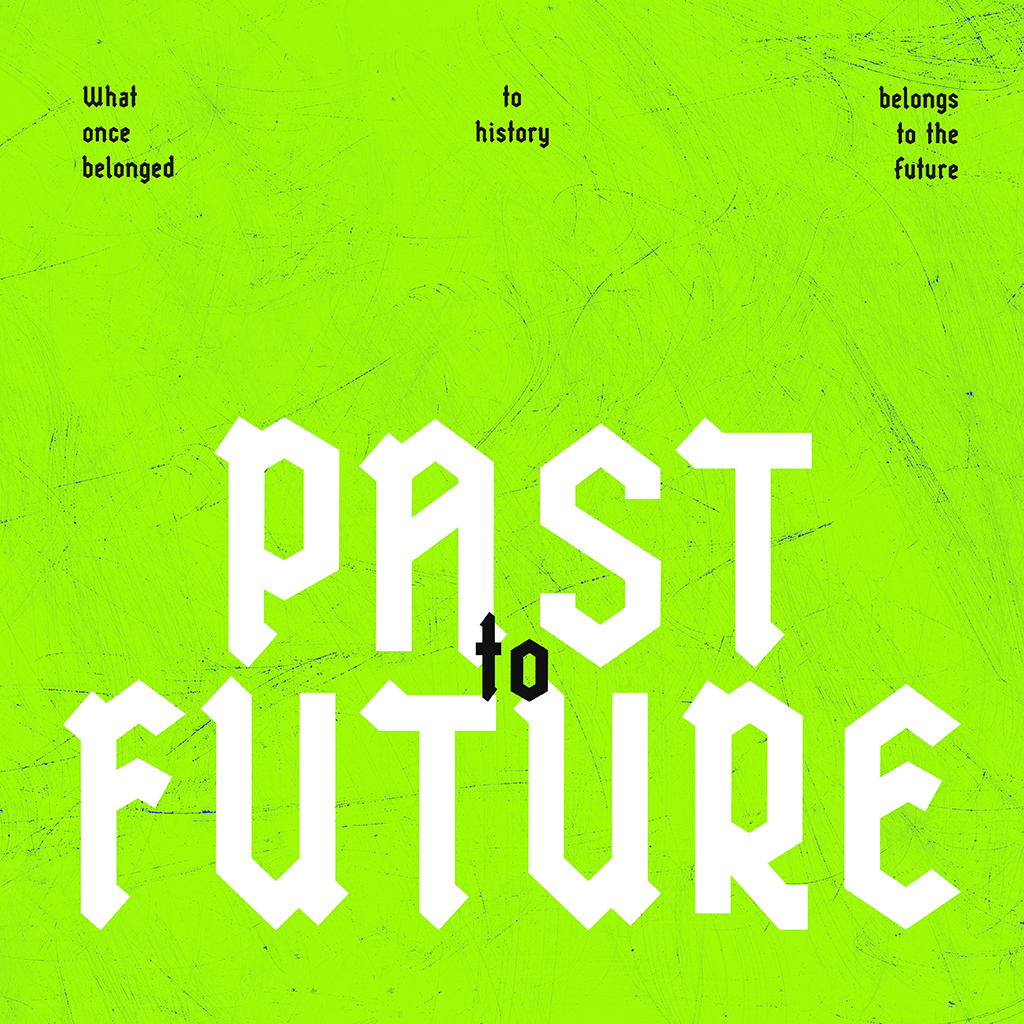
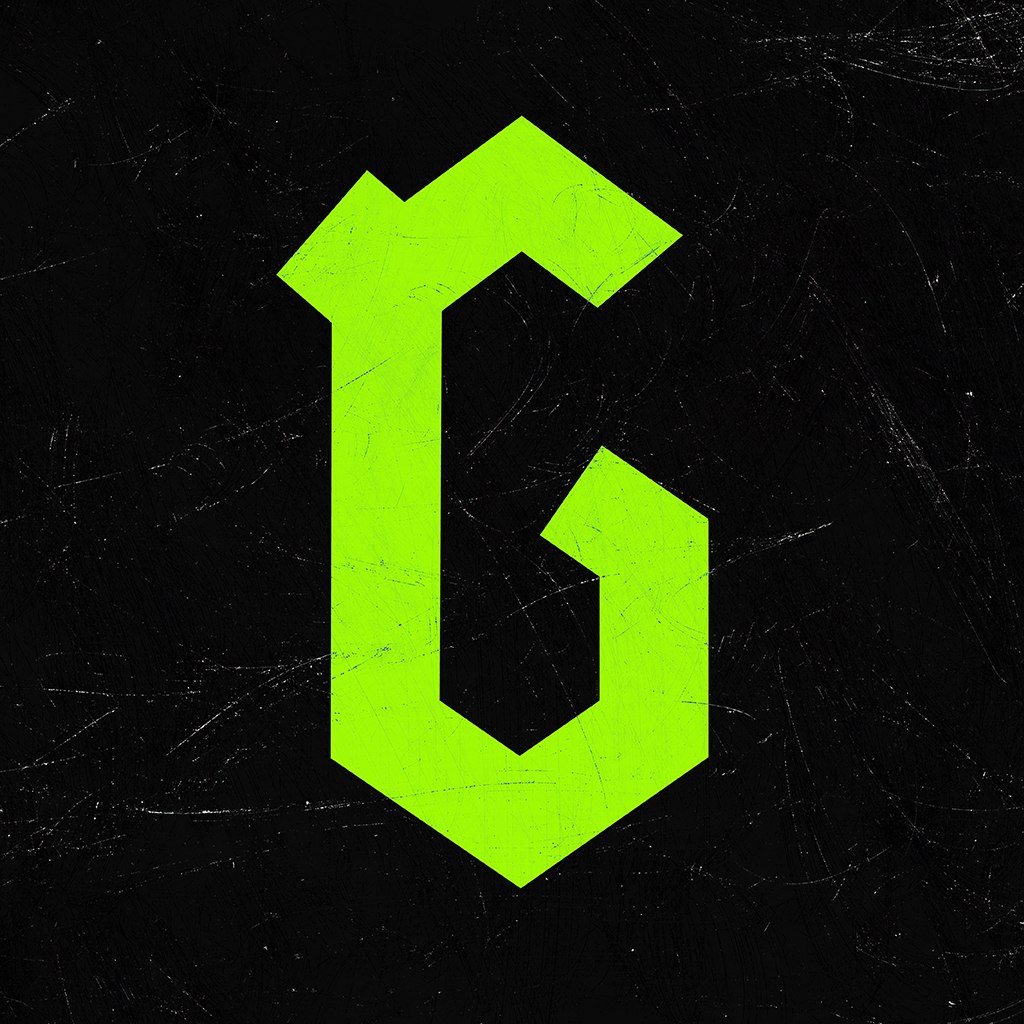
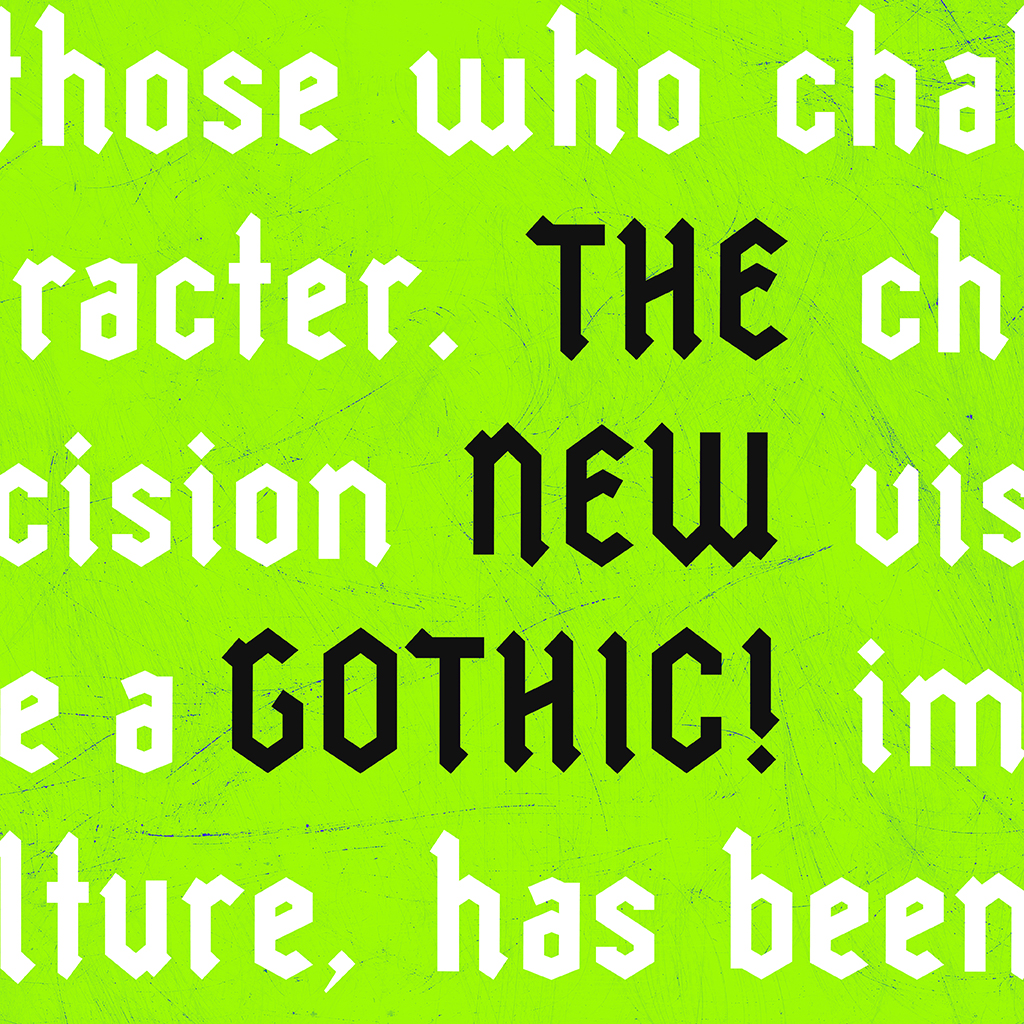
For the applications, I experiment with tote bags, album artwork, and posters. This is probably my favourite part because I can finally see the typeface being used in an actual design instead of just sitting in Illustrator.
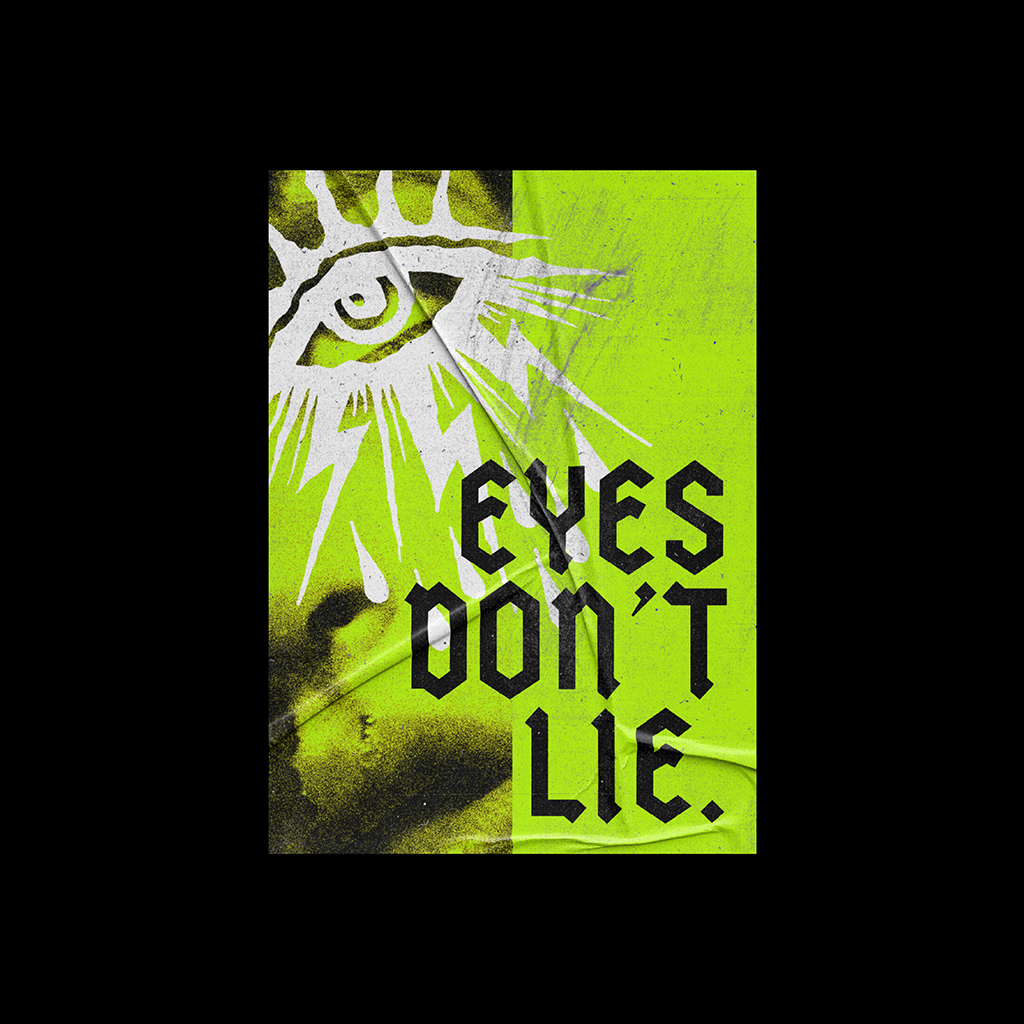
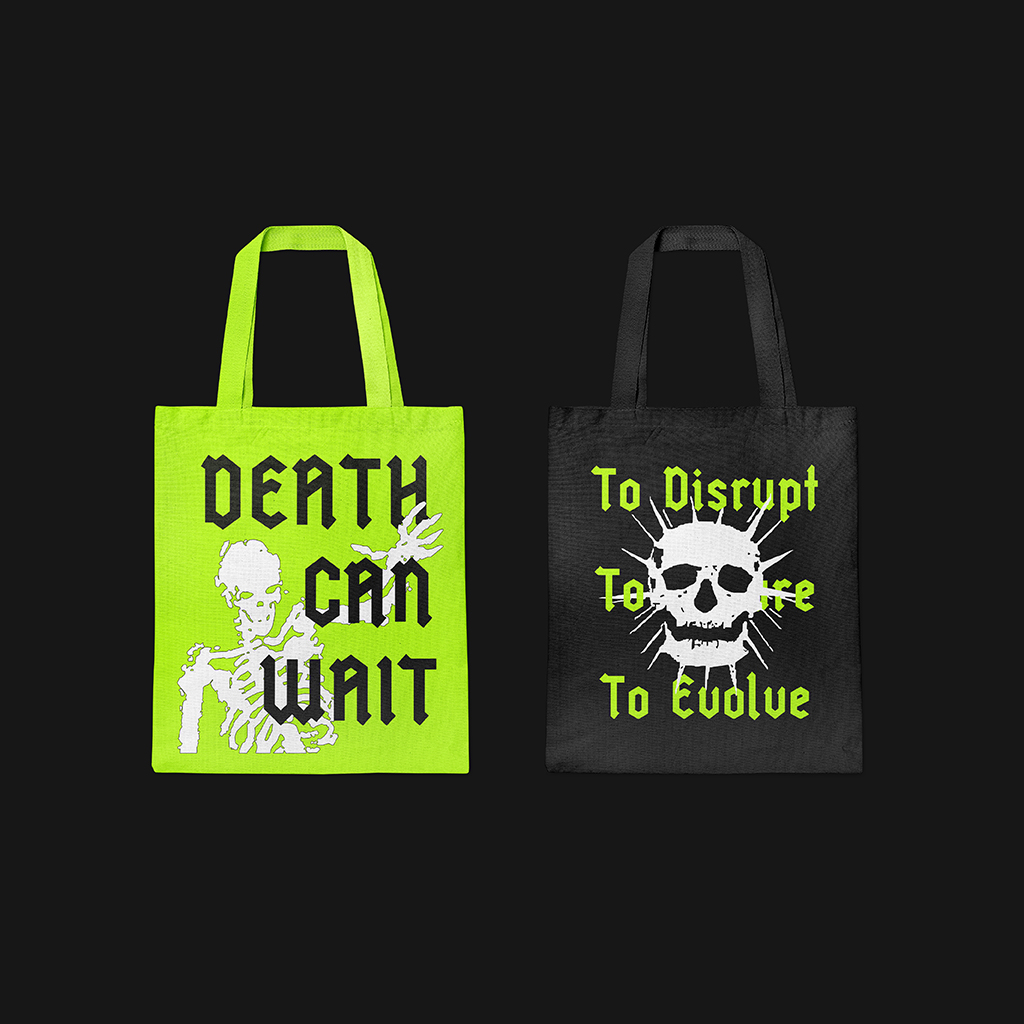
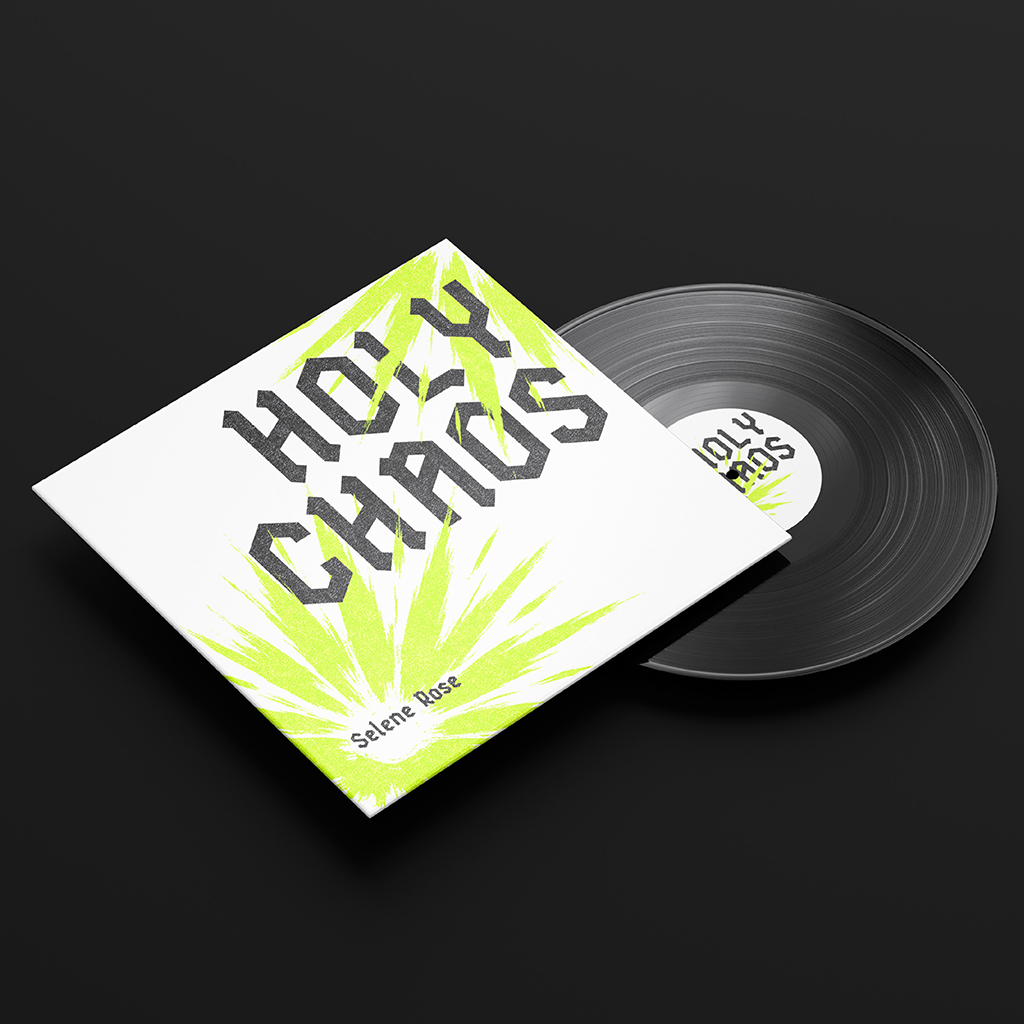
I apply it to a poster, tote bag, and album cover to explore how Eclipse can work across different applications. I go for punk-inspired designs because the typeface’s sharp, bold forms naturally fit that expressive and rebellious style.
What I Learned from Eclipse
Looking back, I did not realise how much patience goes into designing a typeface. At first, I mainly focus on making the letters look good and keeping the style consistent. But as I built the full alphabet, I realise there is so much more to consider, from spacing and proportions to readability and kerning.
Most importantly, Eclipse changes how I see Blackletter. It doesn’t have to feel old or traditional. It can be simplified, changed, and given a new personality while still being recognisable. For me, that is what makes designing ECLIPSE so fun.